
Table of contents
Open table of contents
Introduction
What if you could run a virtual machine directly inside the browser? With v86, this is already possible: it emulates configurable x86 hardware (RAM, VRAM, disks), so you can install a 32-bit operating system without leaving the browser.
And what if you could also run an AI model locally? That is possible too thanks to Transformers.js, which can download and run models in the browser. I explain it in this article, and I also cover browser-based training with TensorFlow.js.
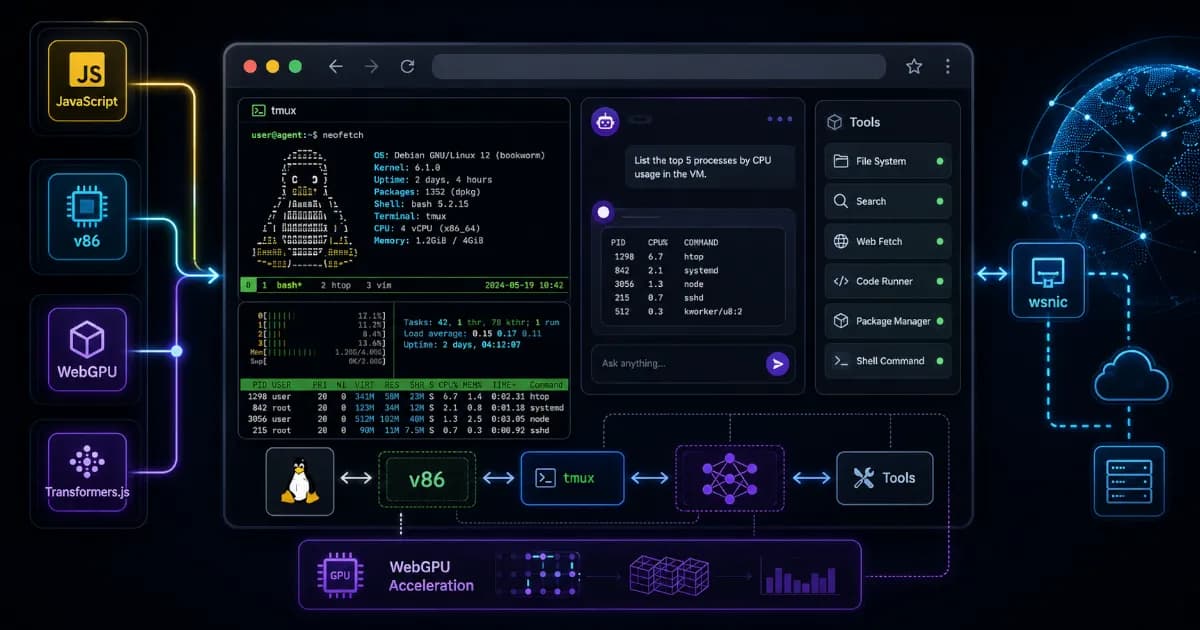
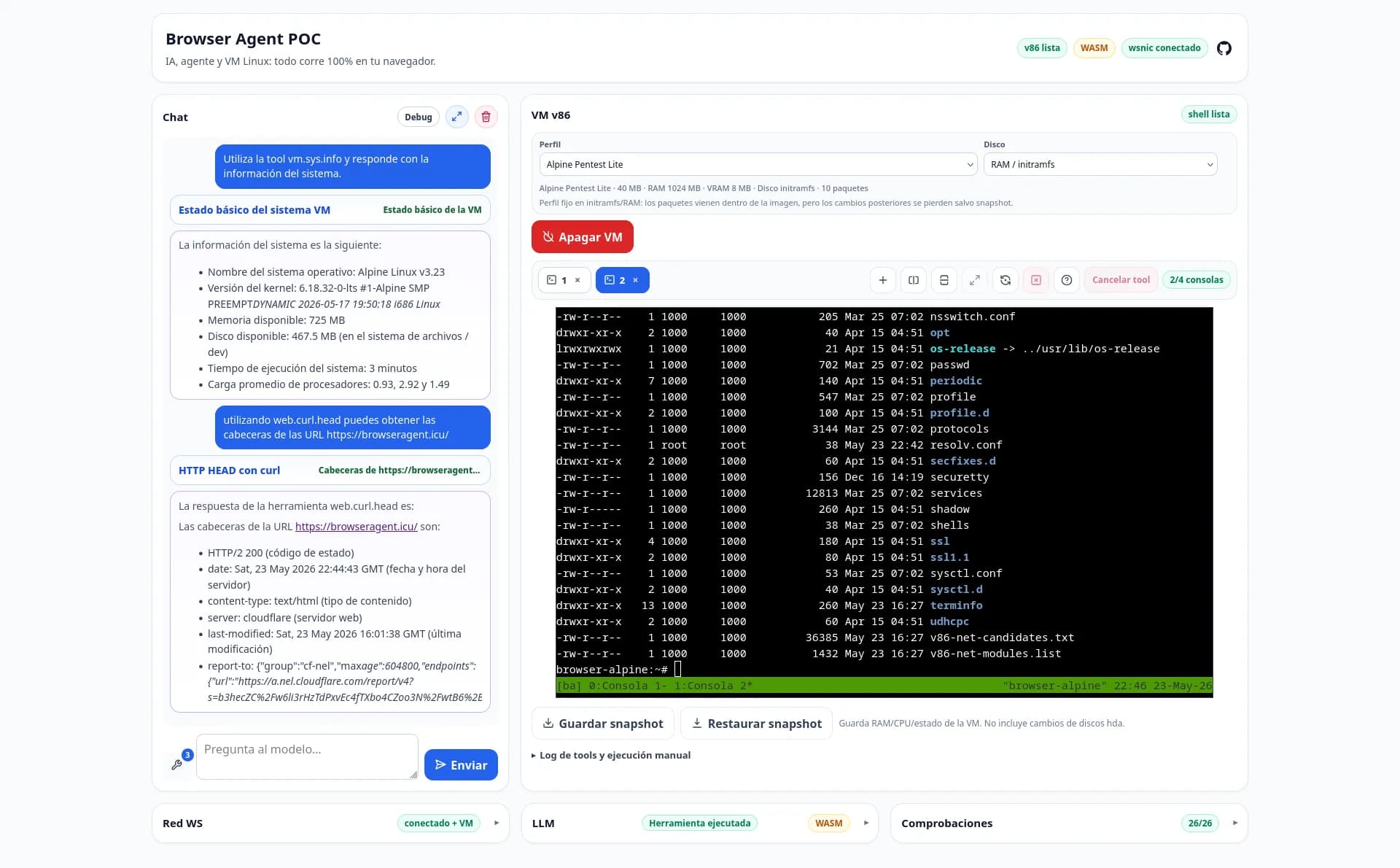
Finally, you can also have an AI agent in the browser that uses Transformers.js to execute commands inside the v86 VM. All of this is now possible with Browser Agent v86 POC, a proof of concept for experimenting with a Linux x86 VM, a local LLM chat, and a set of agent tools directly from the browser.
- Repository:Len4m/browser-agent-v86-poc
- Demo:https://browseragent.icu/
The project is currently in beta; the repository version checked for this article is 0.9.7-beta.2. The UI and the main documentation are available in Spanish and English.
What Browser Agent v86 POC is
Browser Agent v86 POC is a web lab that brings together three pieces that usually live separately:
- A Linux x86 virtual machine running in the browser with v86;
- A chat with local models using Transformers.js and WebGPU/WASM;
- A tool system that lets the agent execute commands inside the VM.
The goal is not to replace a real working environment, but to create a reproducible, portable, and easy-to-launch space for testing, training, research, and controlled automation. Everything runs from a static web application.
Why do this in the browser
The modern browser is no longer just an interface layer. With WebAssembly, WebGPU, Web Workers, SharedArrayBuffer, and local cache, it can run fairly serious workloads without always depending on a backend.
More importantly: if everything runs in your browser, everything is 100% private and free, as long as you do not have an extension installed or use a browser that spies on you.
Network connectivity: optional proxy with wsnic
For the VM to access the internet from the browser itself, a small workaround is needed: running a local proxy called wsnic, which acts as a bridge between your real machine and the virtual one. In other words, although everything else runs 100% in your browser, network connectivity is only possible by running wsnic on your machine. The usual way is to start it easily with Docker, and the VM connects to it over WebSocket at:
ws://127.0.0.1:8086/wsnic
This means all VM network communication goes through your own machine, never through the web server or external intermediaries. As a result, the VM will use your local connection and be integrated into your network, allowing real network tests, CTF participation, local service exploration, and similar use cases.
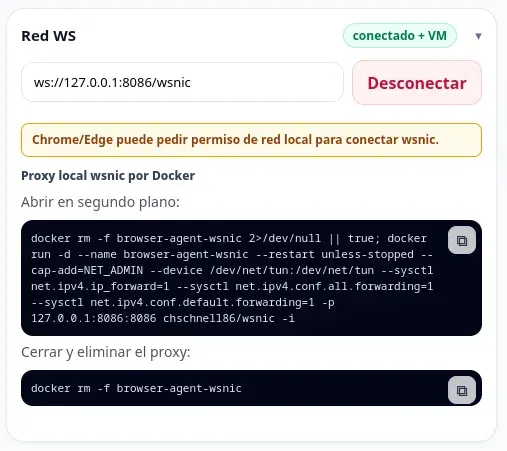
If you do not have wsnic running, the VM will still work, but it will remain isolated from the internet and from your network. In other words, networking is completely optional for the experience, and it only depends on whether the proxy is running locally.
When you run the application published on the internet, 127.0.0.1 still refers to the user’s own machine: there is no exposure or traffic forwarding outside your control. The commands needed to launch the wsnic proxy are integrated into the app itself, and you can start/stop it at any time to experiment with connectivity as needed.
AI models
The application currently supports models from Transformers.js and Ollama. In both cases, inference runs on your own machine, but not always in the same way: Transformers.js runs inside the browser with WebGPU when available and can fall back to WASM for some models, while Ollama runs as a local service and uses the CPU/GPU resources configured in Ollama.
Transformers.js
For the best Transformers.js experience, you need a browser with WebGPU support. Several models are preconfigured, and you can also configure compatible Transformers.js/ONNX models, but not every arbitrary ONNX model is suitable for this chat and tool-calling flow. The WASM fallback is useful for basic chat in some cases, but it should not be considered reliable for agent tools.
- More information: https://caniuse.com/webgpu
- List of ONNX models compatible with Transformers.js:
https://huggingface.co/models?pipeline_tag=text-generation&library=transformers.js&sort=trending
Ollama
There is also an optional integration with Ollama. In this case, the browser sends requests to the user’s local service at http://127.0.0.1:11434/api/chat.
For Ollama to work correctly from the browser, you need to configure the OLLAMA_ORIGINS environment variable with the exact origin that serves the app.
Example:
# Local development
OLLAMA_ORIGINS=http://127.0.0.1:5173 ollama serve

# Published demo
OLLAMA_ORIGINS=https://browseragent.icu,https://www.browseragent.icu ollama serve
Performance and integration
After several tests, Ollama models provide much better performance than Transformers.js, due both to the browser’s own limitations and to the way Ollama integrates with the agent tools. With Transformers.js, you have to infer whether the model wants to use a tool by analyzing its response; with Ollama, this is indicated clearly and directly.
I trust that the experience and compatibility with Transformers.js will improve over time, and I hope to keep updating the PoC as both technologies evolve.
VM profiles
I have implemented a system that can create virtual machine profiles from JSON configuration files, making it easier to customize and maintain the different Alpine variants available.
The following table lists the available profiles and the main packages they include at the time of writing:
| Profile | Main installed packages |
|---|---|
alpine-base | ca-certificates, curl, nano, python3 |
alpine-pentest-lite | ca-certificates, curl, nano, python3, nmap, ffuf, py3-pip, bind-tools, iproute2 (+ SecLists Web-Content wordlists) |
alpine-pentest-web | All of the above, plus nikto, httpx, perl-net-ssleay, perl-io-socket-ssl, perl-mozilla-ca, openssl |
These profiles let you adapt the environment to your needs, from a basic system to one prepared for network testing or web auditing.
In any case, you can also install additional packages if you have configured network connectivity, using the apk command.
Example htop installation:
apk add htop
Snapshots
Keep in mind that everything runs in the browser; therefore, if you change pages or reload the site, you will lose the virtual machine state. There are two options: you can configure the network to send yourself the necessary data, or you can generate a snapshot.
However, be careful when restoring a snapshot: for everything to work correctly, you must configure the same VM profile with the same parameters. Also, the snapshot saves the state of RAM, CPU, and the v86 VM, but it does not persist changes made to the HDA disk image.
Usage
The easiest way to use it is by opening this URL: https://browseragent.icu/, where you will find everything you need.
If you prefer to run it locally, you can do that too, but you will need to download the dependencies, the images, and build the repository.
git clone https://github.com/Len4m/browser-agent-v86-poc.git
cd browser-agent-v86-poc
npm install                 # installs dependencies
npm run prepare:local       # first run: VM setup + frontend/LLM/assets build

# You can choose one of these two options to start the local server:

npm start                   # Recommended option. Includes the required headers, WASM MIME handling, Range support, and proper support for the VM HDA disks.

# Or start a simple Python server:
cd public
python3 -m http.server 5173 # Alternative option. WARNING! In this mode you will not have all the required headers, so SharedArrayBuffer, v86, VM HDA disks, or the LLM may not work correctly.
Current limitations
This is still a proof of concept. There are several important limitations:
- The first boot may require large downloads;
- Local models depend heavily on the browser, hardware, and WebGPU/WASM support;
- The VM needs specific headers to perform well, especially with HDA disks;
- Networking is slow, so be careful with the number of requests.
- The VM only has one core, so be careful with the number of running processes.
- Tools with Transformers.js are limited compared with Ollama-backed tool calls.
The intention is to keep the project as a clear experimental environment, not to present it as a closed platform or a production solution.
Conclusion
Browser Agent v86 POC brings together several technologies I had previously explored independently: Linux in the browser, local models with Transformers.js, WebGPU, agent tools, and reproducible automation.
The result is a lab that can be accessed directly from a URL, run locally, or even packaged as a static environment. Although it is still in beta, it already makes it possible to experiment with very interesting workflows: a Linux virtual machine controlled from a web interface, console, and chat, with a clear separation between the human session and the agent’s automated actions.
Developing this PoC has been a real challenge, especially because of the need to optimize memory usage to prioritize both the virtual machine and the language model, while also looking for alternatives to the isolation imposed by the browser. Even so, thanks to collaboration with artificial intelligence, motivation, and the time invested, it has been possible to bring this project to life, and I hope to keep improving it.